Left Arrow
Back to Projects

Loop

Build automation your way using prompts, workflows, or code, all within one system designed for every level of expertise.

CONTEXT
Internal product at Target (Automation Platform)
STATUS
Live and being used by over 95 teams
MY ROLE
End-to-End Design including User Research, UI Design, Prototyping and User Testing
Build automation your way

The Origin

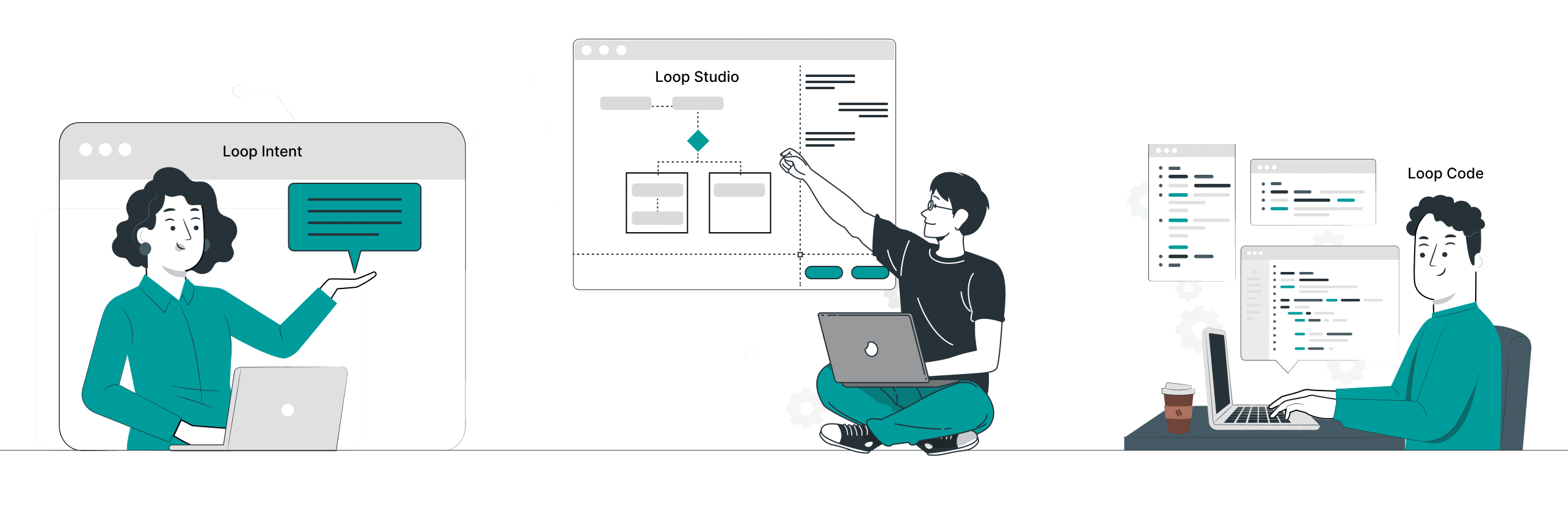
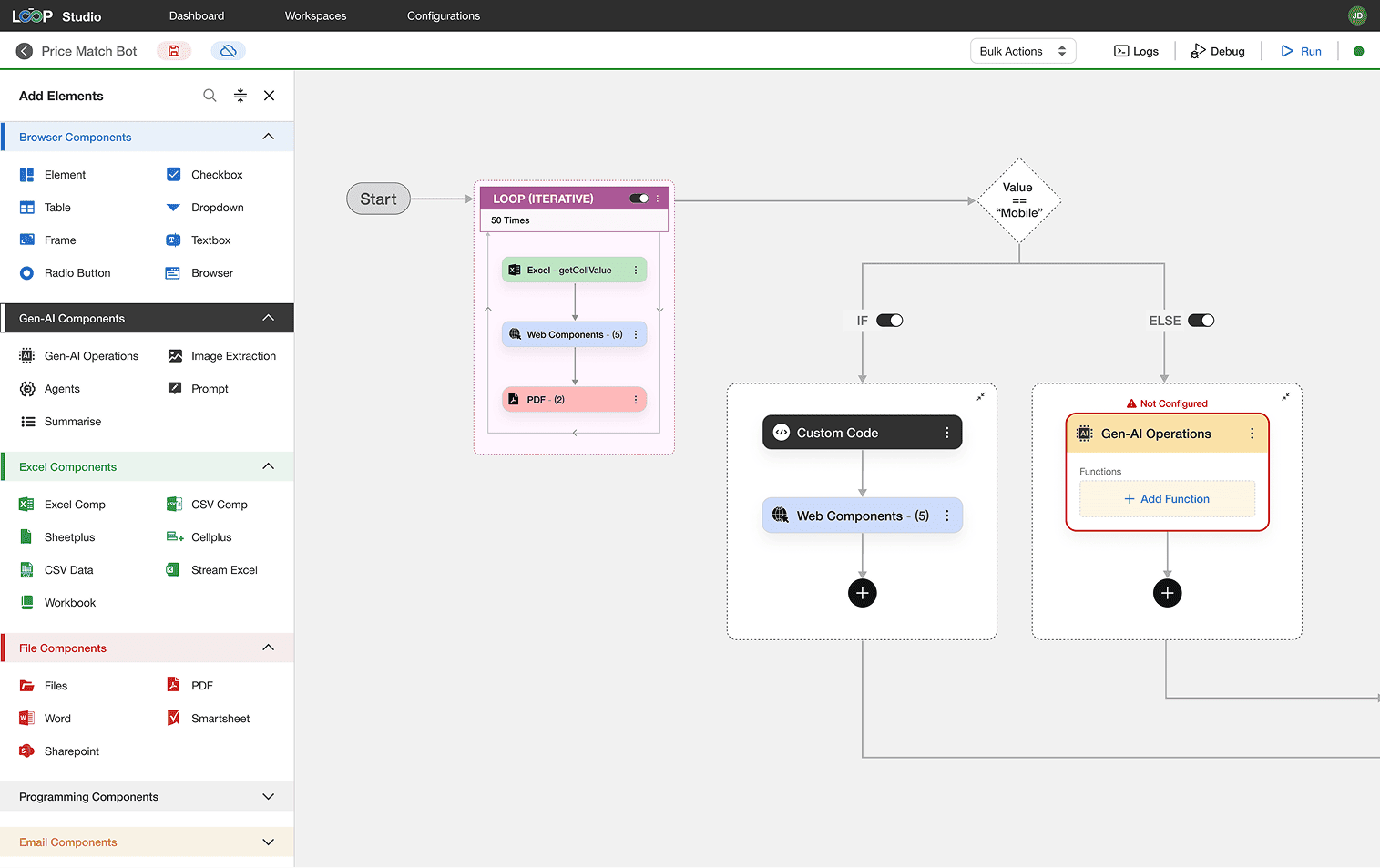
I designed three separate automation products across three independent teams at Target — Loop Studio for drag and drop workflows, Loop Intent for AI based automation, and Loop Code for code based execution. Each shipped successfully. But as someone who had worked across all three, I noticed something no single team could see: every product was solving the same problem in isolation.

I proposed merging them into one unified platform. After validating feasibility as a team, I led the end to end design of what became Loop.
Where it Started?

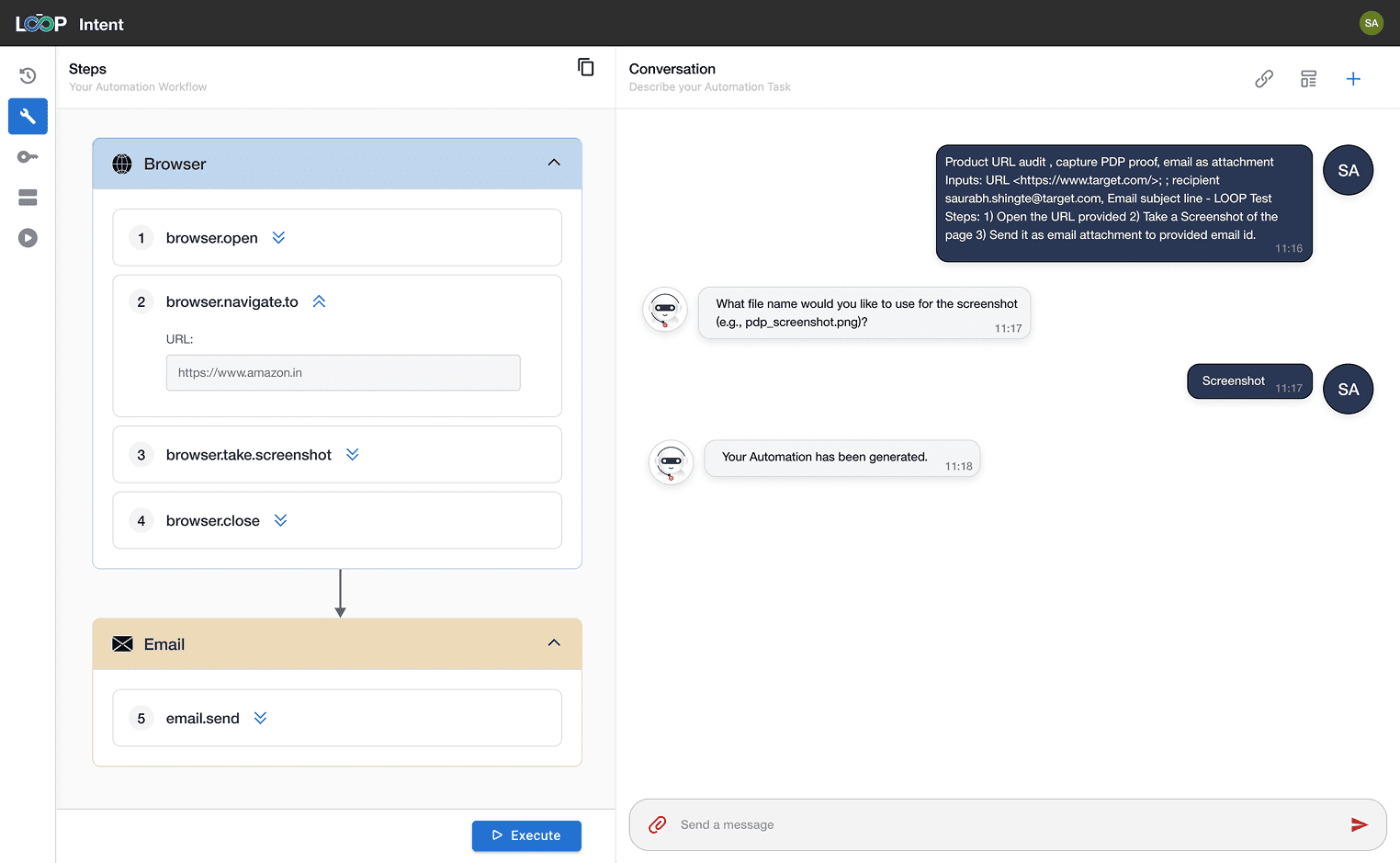
Loop Intent
Describe what you want. AI generates and executes the automation.
Loop Studio
Drag and drop nodes to build automation visually.
Loop Code
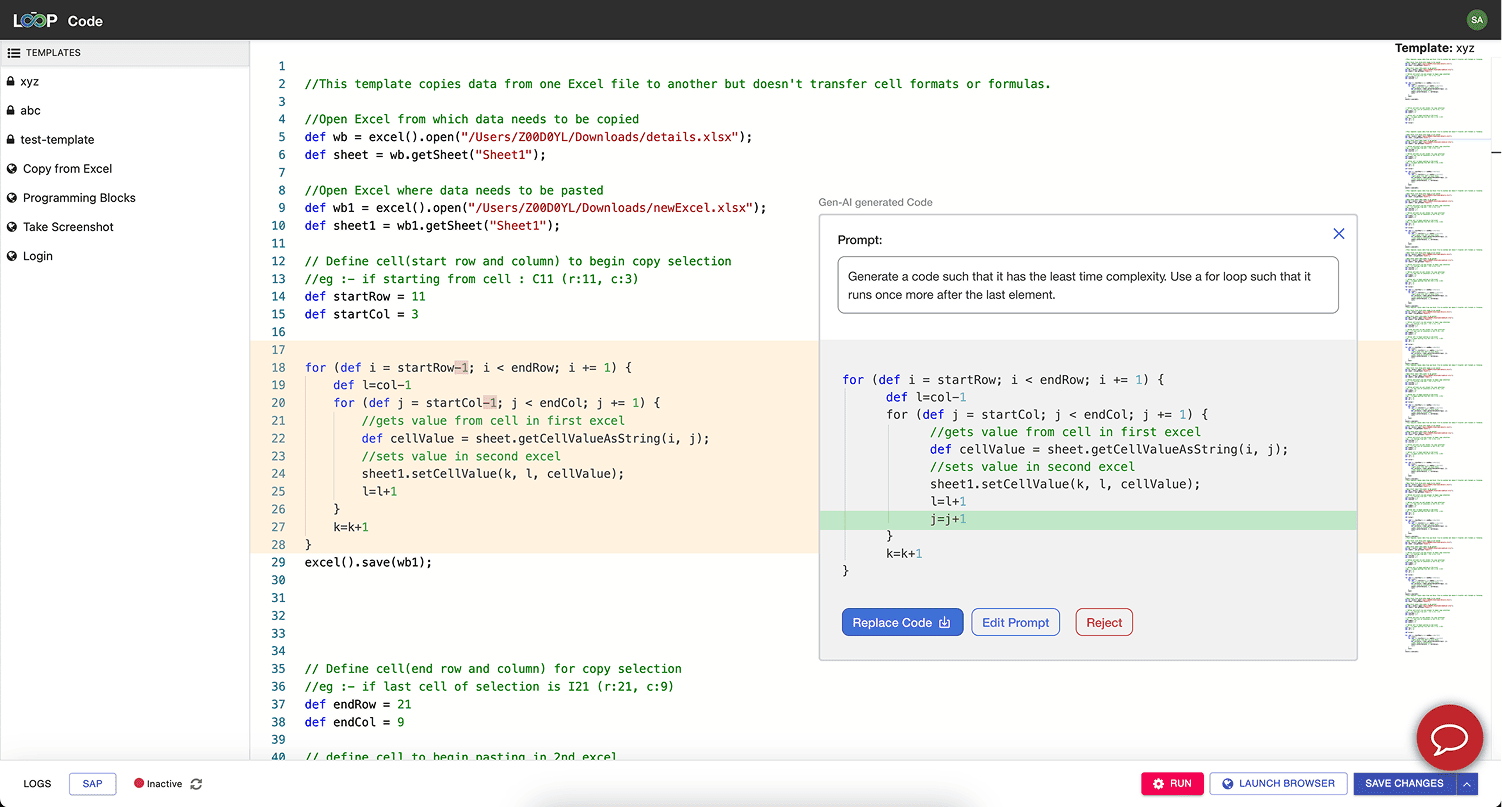
Write automation directly in code with full control.

Different Users. Different Ways to Build

Not everyone building automation is technical, but most tools are designed as if they are.
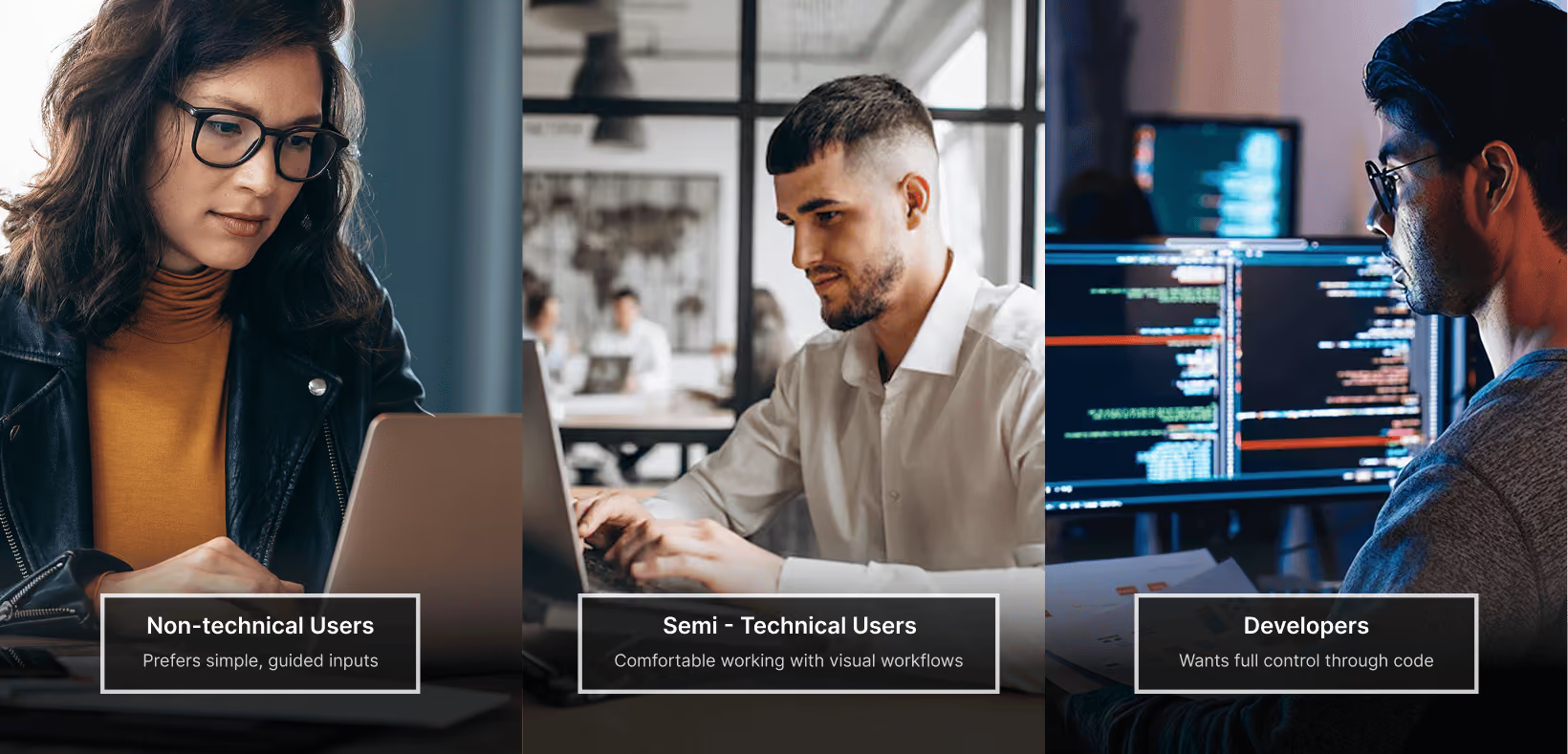
👉 Most automation tools are built for one type of user, forcing everyone else to adapt or fall behind

Core Problem

There isn’t a single system that works across all skill levels. Users are forced to adapt, compromise, or start over.

What we heard?

Through conversations with 12+ teams across engineering, ops, and analytics domain, three patterns emerged consistently.
“I don't know how to write a workflow, I just know what I want it to do."
Non-technical user
“I always end up redoing it in code anyway because I don't trust what the tool generated.”
Developer
“I need to see what's happening under the hood before I run anything in production.”
Semi-technical User

Rethinking how an Automation is Built

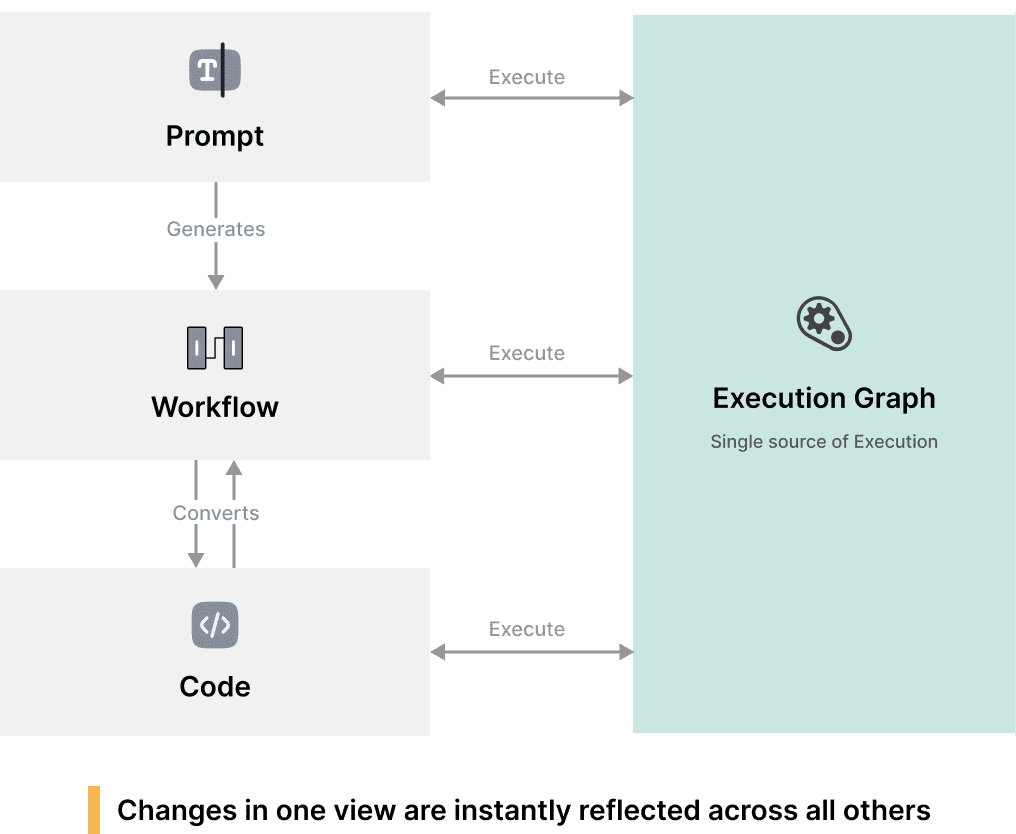
Prompts, workflows, and code aren't separate tools, but different ways to express the same automation.
The problem wasn't technical skill. It was fragmentation. Instead of designing three separate experiences for three types of users, I unified them into a single system with one execution layer.

And since not all automation starts with clear intent, the system also lets users record their own actions and convert them directly into workflows.

Turning the system into a usable experience

Now that the system supports multiple ways of building automation, the challenge was to bring it together into a single, intuitive workspace.
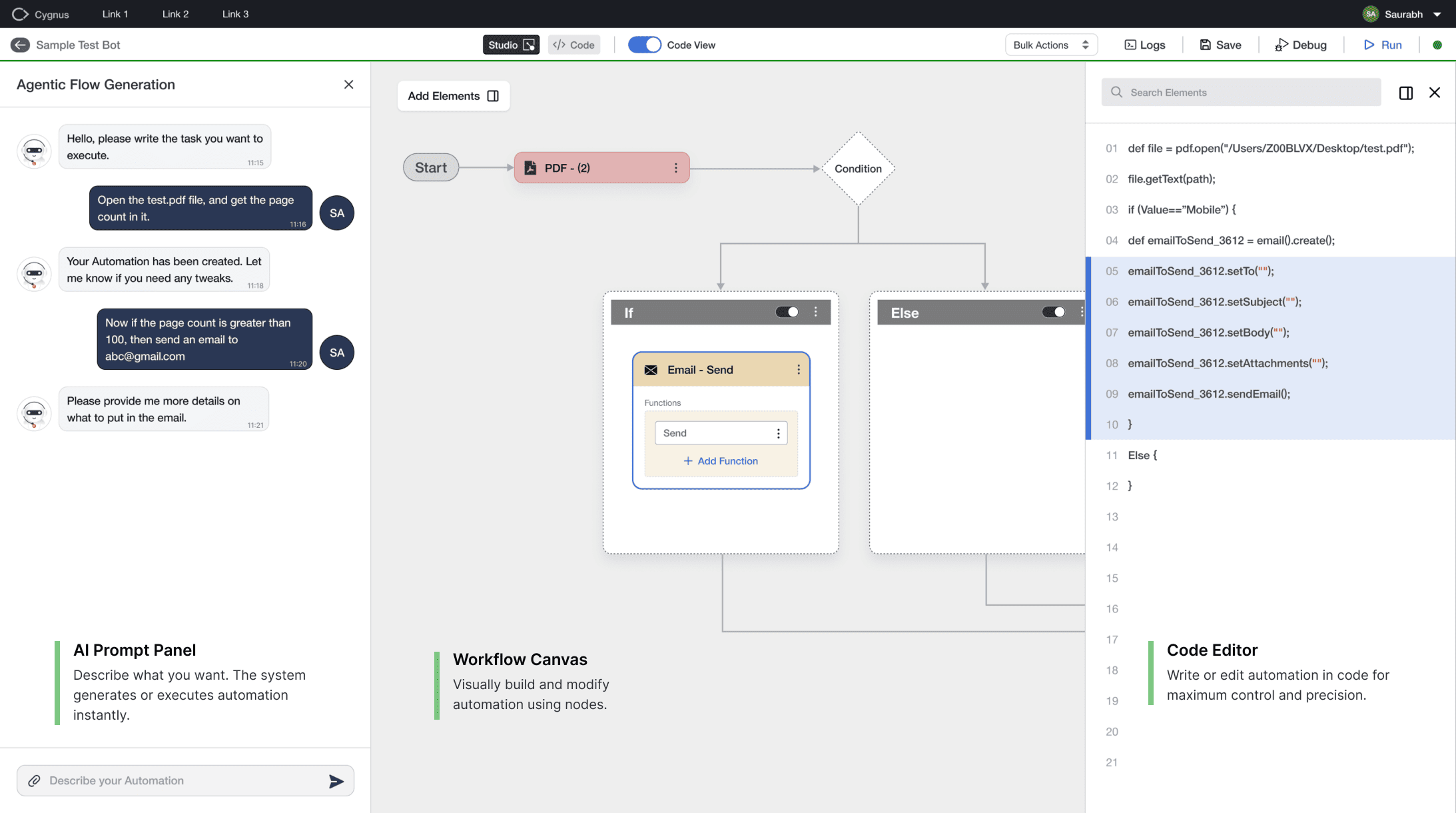
👉 Users can start anywhere — prompt, workflow, or code — and move between them seamlessly within one workspace.

Quick Demo of Loop

Multiple Ways to Build Automation

Users can start from different entry points depending on their technical comfort and workflow needs.

Prompt  --->  Execute
Start with a prompt and run instantly
Prompt  --->  Workflow  --->  Execute
Generate and refine before execution
Workflow  <----> Code  --->  Execute
Build and customize with full control
Record  --->  Workflow  --->  Execute
Capture actions and convert into automation

Key Design Decisions

Designing a flexible automation system required balancing simplicity, control, and clarity. These decisions shaped how the system behaves in practice.

Avoiding separate modes
I kept AI, workflows, and code in one workspace instead of splitting them into modes.
Tradeoff: Harder to design, but removes context switching for users.
Balancing AI with user control
AI could have handled everything, but I exposed workflows and code for visibility and edits.
Tradeoff: Slightly more complexity, but much higher trust.
Supporting unclear user intent   
Users don’t always know what to automate, so the system supports prompts and action recording.
Tradeoff: More entry points, but better accessibility.      
Maintaining system consistency
All interactions map to a single execution layer to keep everything in sync.                                      
Tradeoff: More complex system design, but seamless user experience.

How it evolved?

Shipping was the starting point, not the finish line. As teams adopted Loop, real usage surfaced patterns we hadn't fully anticipated. Here are two decisions we revisited after launch.
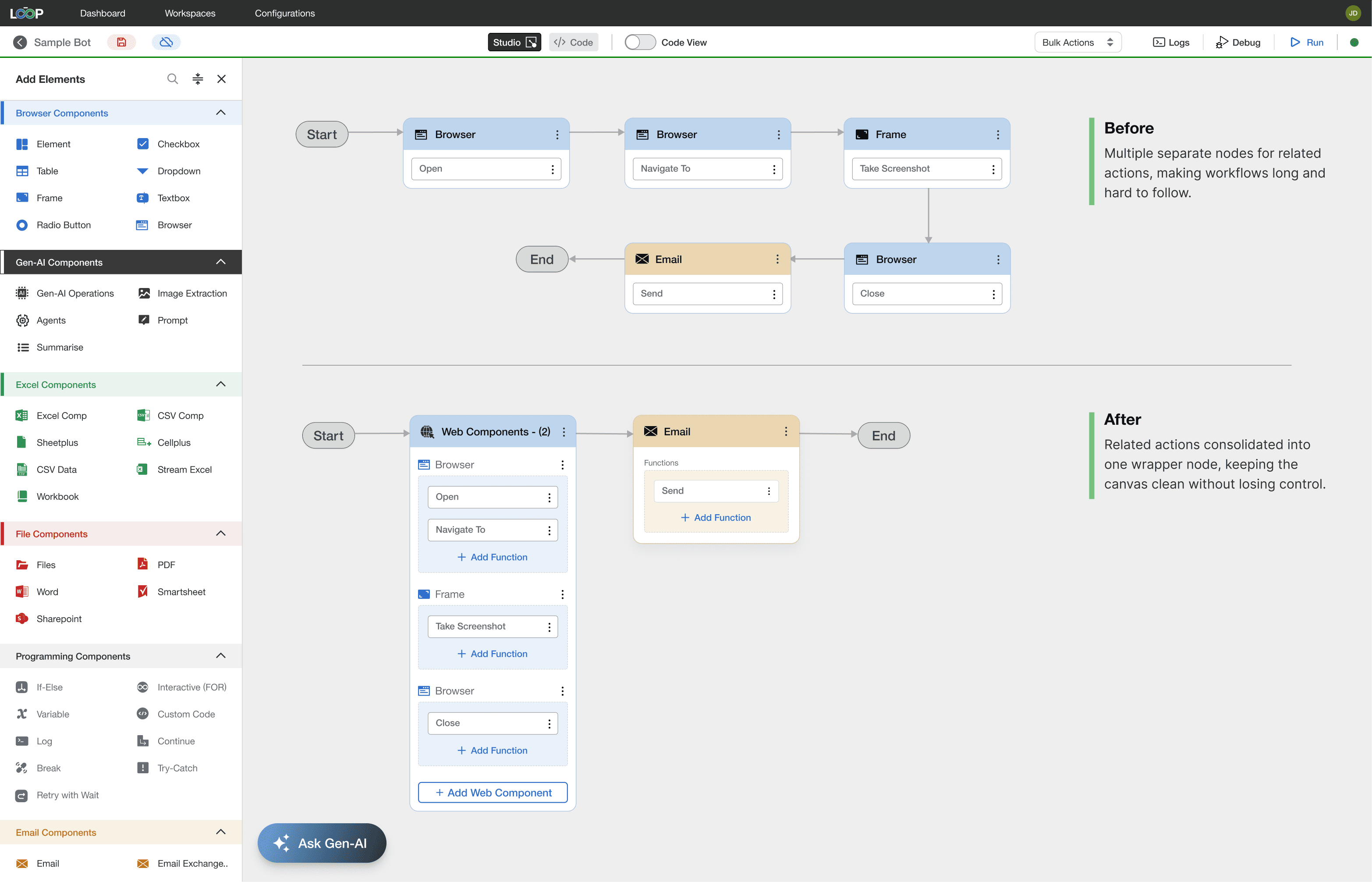
Simplifying the Workflow Canvas
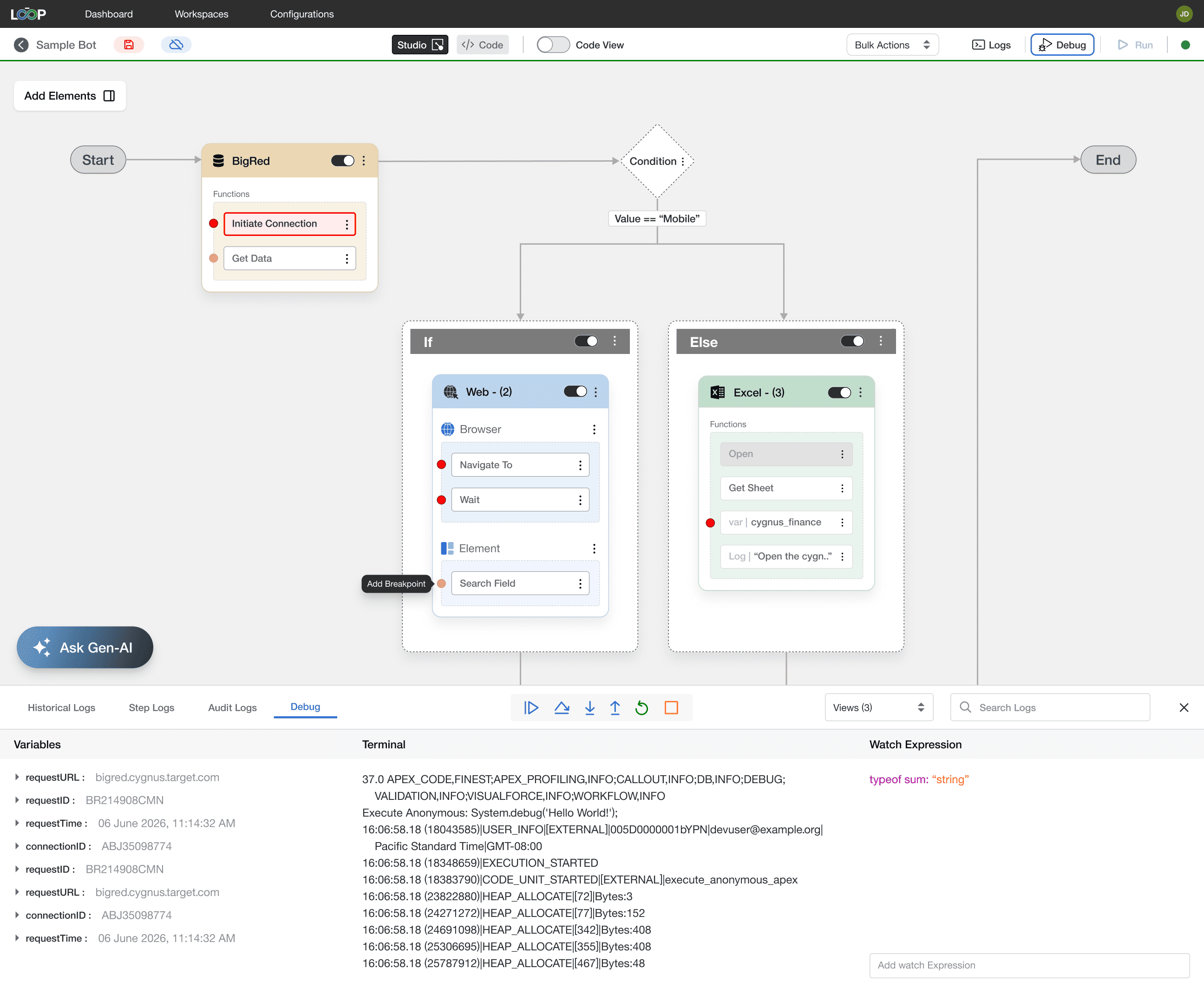
Users building complex automations were placing multiple separate nodes for related actions like open, navigate, and screenshot, making workflows hard to read and debug. We introduced wrapper nodes that group related actions into a single container, keeping the canvas clean without removing granular control.
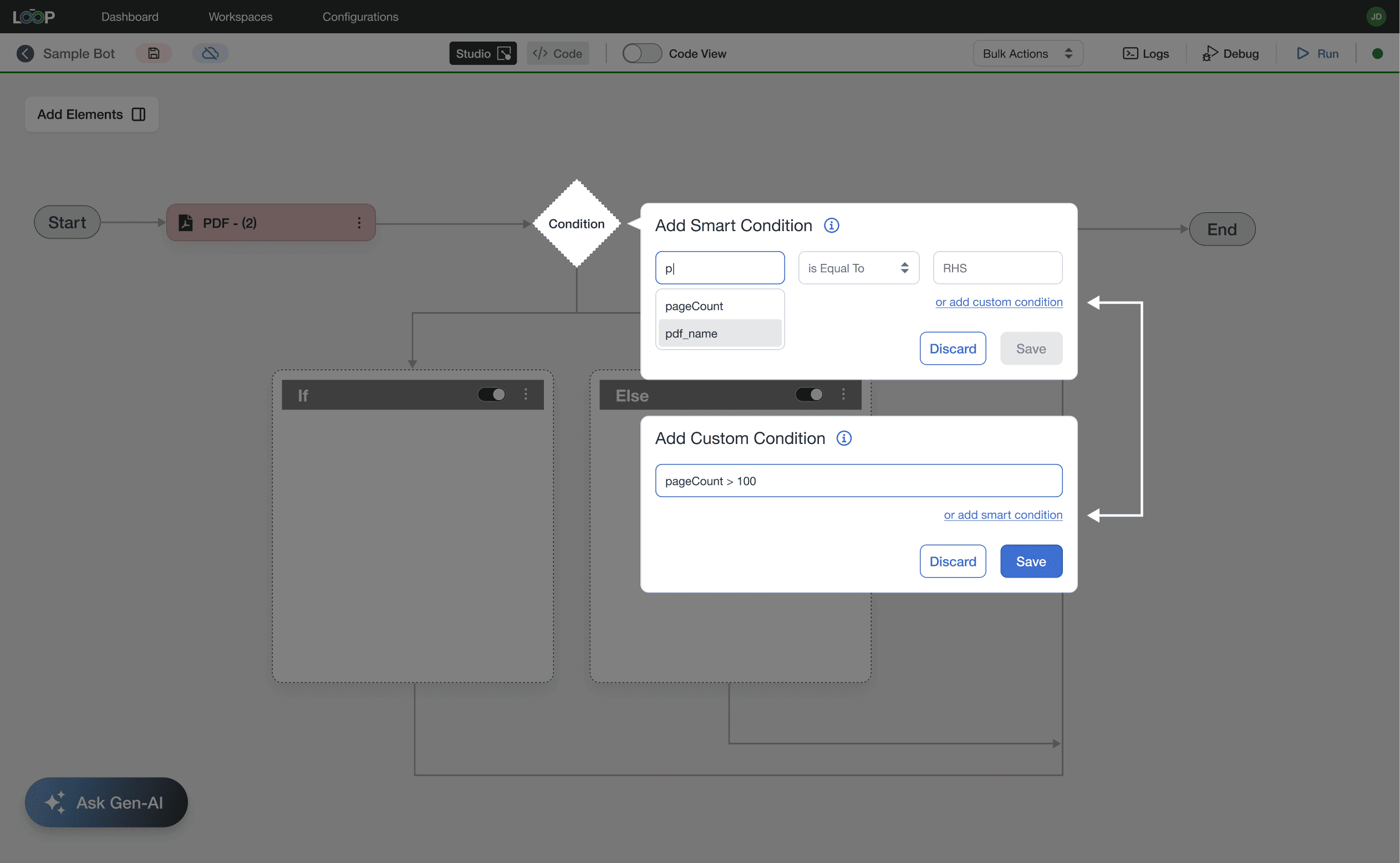
Conditions for Every Skill Level
Conditions like "pageCount > 100" suit developers but confuse non-technical users. We created a dual-mode builder: Smart Condition uses guided dropdowns for users who know their needs but not syntax, while Custom Condition offers developers free-form input. Both share one interface with easy switching.
Enabling safe testing before execution
Teams running complex automations needed confidence before executing in production. We built a full debug mode with breakpoints, variable inspection, and step-by-step execution — giving users the transparency to trust what the system was doing.

Expanding the Ecosystem

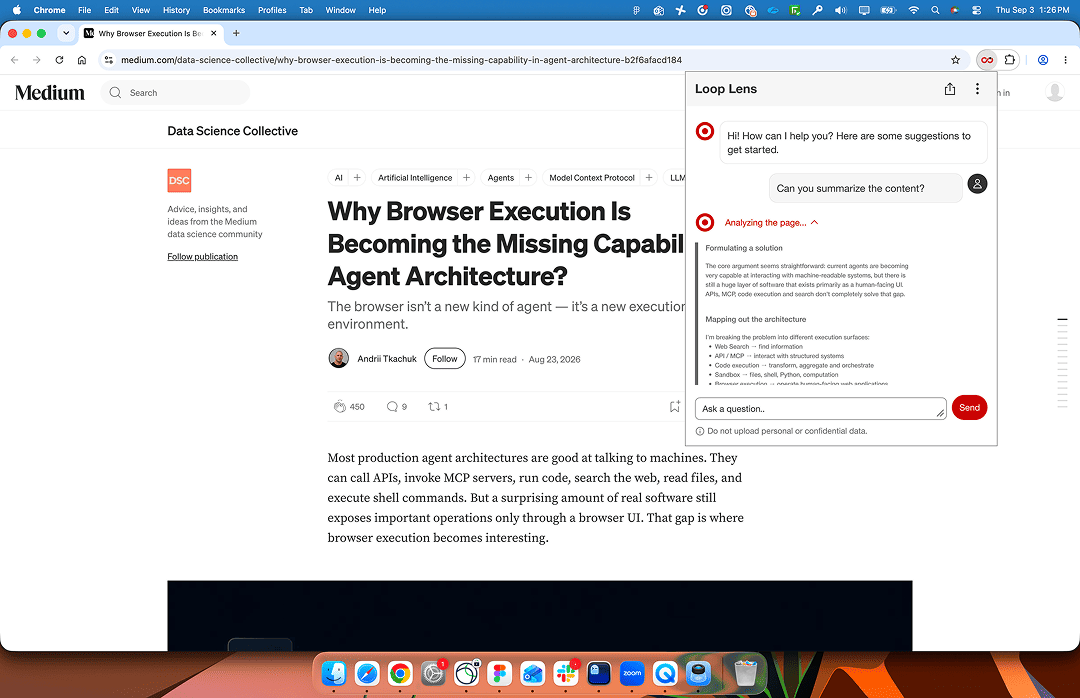
Loop also grew to include two companion tools. Loop Miner lets users record their actions across any app and convert them directly into reusable workflows — no technical setup required. Loop Lens is a browser extension that brings Loop's AI capabilities directly into the browser, letting users automate web tasks without leaving the page they're on.
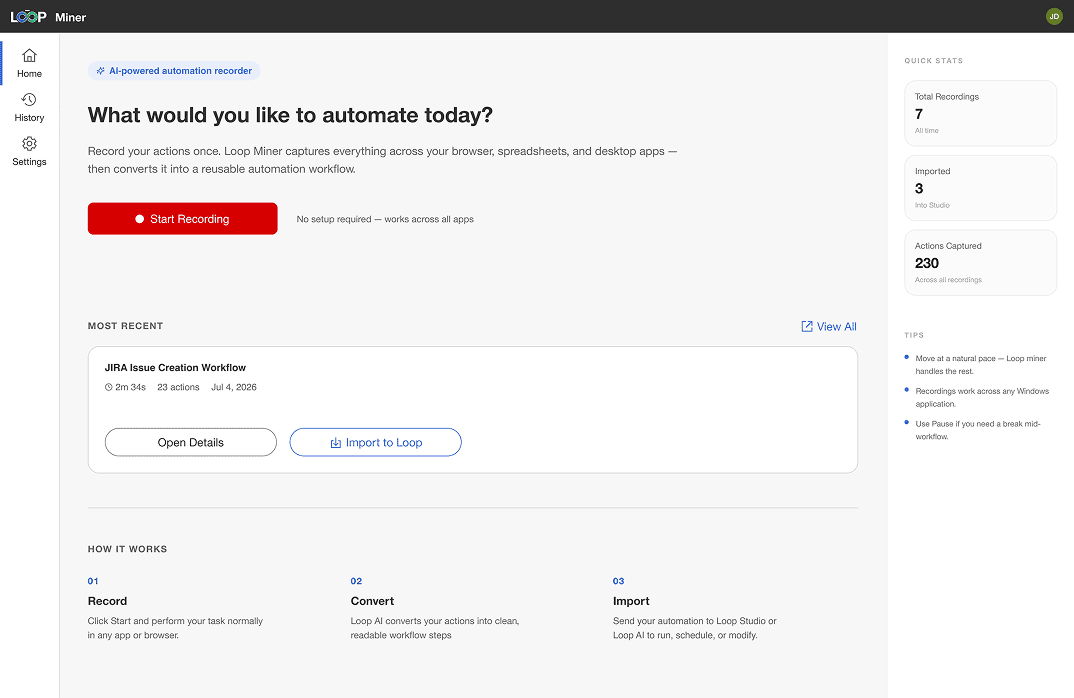
Loop Miner
Loop Lens

Impact

  • Scaled to 95+ teams across Target, growing from a single-team pilot to one of the most widely adopted internal automation platforms.
  • Automation that previously took engineers 4 to 5 hours to build dropped to 30 minutes to 1 hour after Loop — and for the first time, non-technical users could build workflows independently without engineering support.
Build automation your way